Ever noticed through those perfectly curated Instagram Stories with multiple photos seamlessly arranged, questioning how they achieved that polished look? It’s not some secret wizardry, but a built-in Instagram tool called Layout in Instagram Story that can transform your storytelling.
Don’t want to fall behind the curve of engaging and professional-looking Stories? Many savvy users are already leveraging this feature to make their Stories stand out. Try to unlock this capability and create eye-catching, multi-photo masterpieces. Join us as we explore the ins and outs of “How to get layout in Instagram story?”
Why Should You Add multiple photos to Instagram Story using Layout?
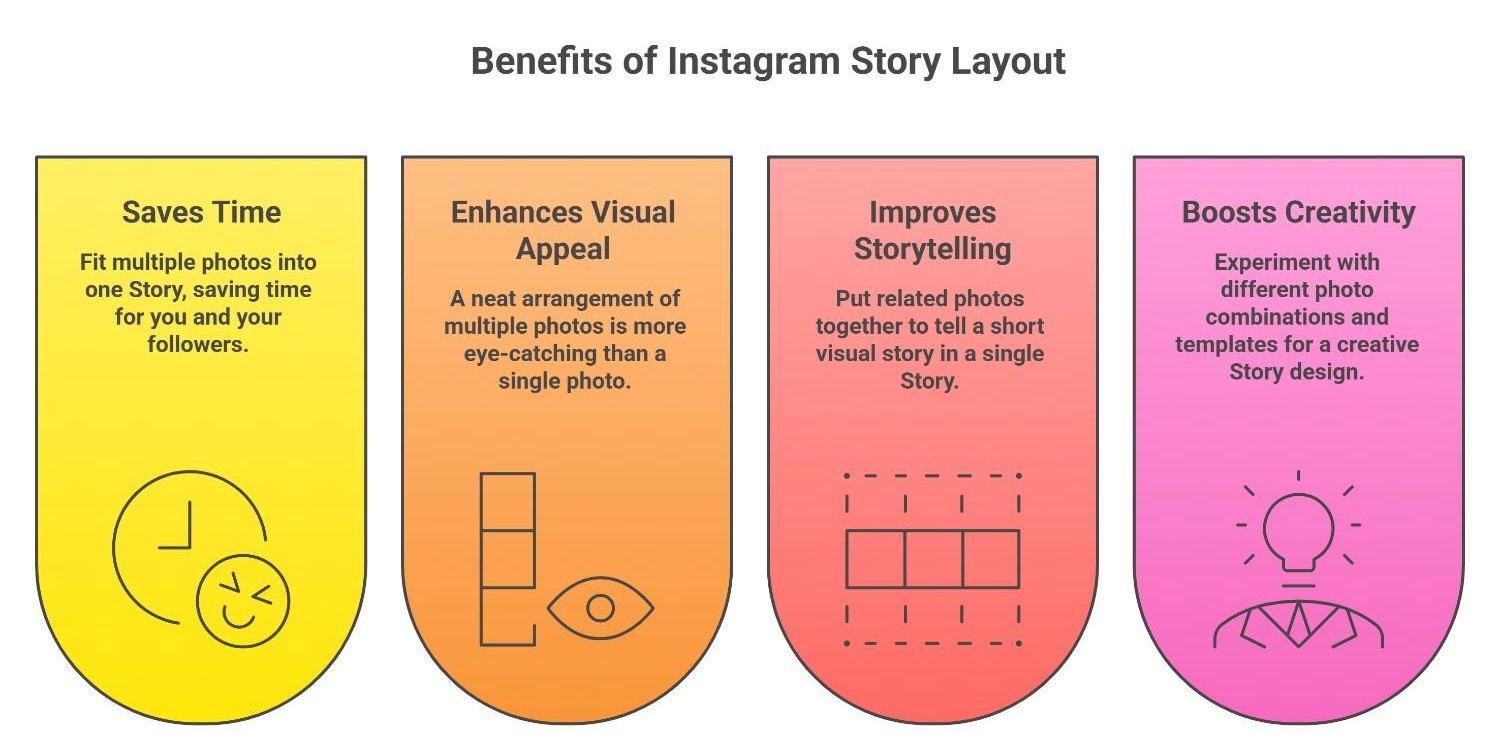
You might be thinking, why bother? One photo is enough! But trust us, using the layout in Instagram Stories has a ton of benefits:
- Saves Time: Instead of posting several Stories back-to-back, you can fit all your photos into one. This saves both your time and your followers’ time.
- Enhances Visual Appeal: A Story that showcases multiple beautiful photos arranged neatly is much more eye-catching than a single-photo Story.
- Improves Storytelling: You can put related photos together to tell a short visual story in a single Story. For example, the stages of a trip, different moments from a party, or even before-and-after photos of a project.
- Boosts Creativity: Layout gives you the freedom to experiment with different photo combinations and various templates, allowing you to achieve a Creative Story design on Instagram that reflects your personal style.
How to Enable Layout on Instagram Story? (An Instagram Layout tool tutorial)
Fortunately, this feature is super accessible and easy to find! To Use Layout in Instagram Stories, just follow these steps:
- Go to the Instagram Story section: As usual, swipe down from the top of your feed or tap on your profile picture and select “Story.”
- Navigate to the Layout section: Once you’re in the Story creation screen, you’ll see various options at the bottom, like “Live,” “Boomerang,” “Superzoom,” etc. Look for the “Layout” option and tap on it. The icon might look like a grid with several squares, your gateway to the Instagram Story photo grid.
· Using Layout Templates on Instagram for your Instagram multi-photo Story
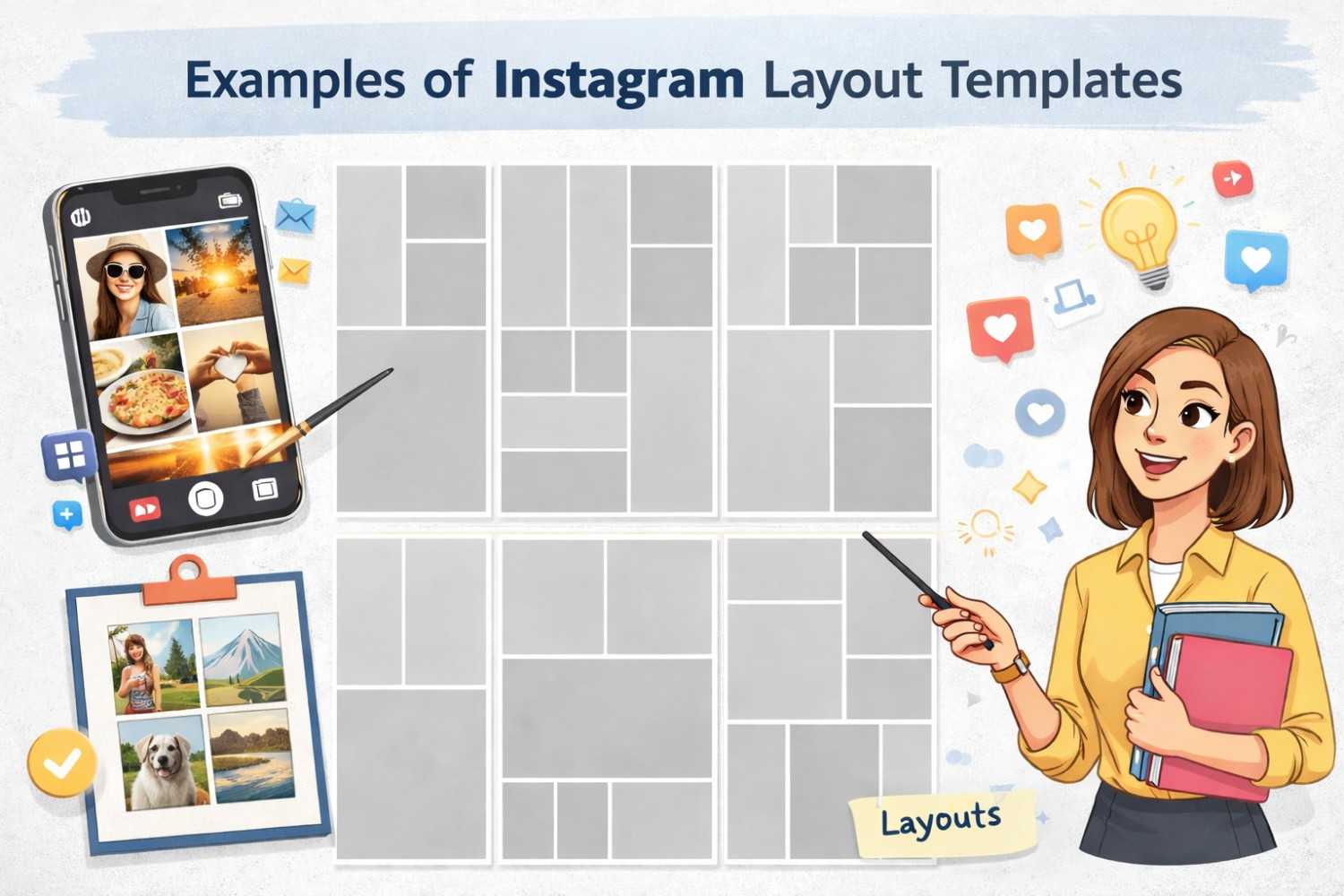
When you enter the Layout section, you’ll see several pre-designed templates you can choose. These templates offer a Built-in Instagram collage option. Some templates display two photos side-by-side, creating an Instagram Story split screen, others show four in a square, and there are various other combinations as well.
- Select your desired template: Tap on each of these templates to see a preview. Choose the one that best suits the number of photos you have and the kind of story you want to tell.
- Add your photos: After selecting a template, you’ll see that your screen is divided into several sections. To add a photo to each section, you have two options:
- Take a photo: Tap the camera icon at the bottom of each section to take a new photo right then and there.
- Choose from your gallery: Tap the gallery icon to select photos from your phone’s gallery. Instagram will show you your most recent photos, but you can access all your albums.
- Adjust your photos: If you’re not happy with how a photo is positioned within the template, you can adjust it before finalizing your Story. Usually, by tapping and holding a photo, you can slightly move it around, or if the template allows, you can resize it. This is part of the Instagram Story customization
- Publish your Story: Once you’ve added all your photos and are satisfied with the layout, you can add stickers, text, filters, and anything else you like, just like a regular Story, and then tap “Your Story” to publish it.
- It’s worth noting that currently if you decide you want to use a different Layout template after selecting your photos, you’ll need to remove the photos and start again with the new template. There isn’t a direct way to switch templates once photos are added, which might be why some users search for “Instagram story layout missing”
· Using the Photo Sticker for Custom Layouts (Beyond the Collage option in Instagram Stories)
Besides the pre-set templates, there’s another way to create a layout in Instagram Story, and that’s by using the Photo sticker manually.
This method gives you more flexibility to build your own custom arrangements:
- Go to the Story section and choose a background photo: First, select a photo or video to use as the background for your Story. This could be a simple photo, a color, or even a Boomerang.
- Use the Photo sticker: After choosing your background, tap the sticker icon (the smiley square at the top of the screen) and look for the “Photo” sticker. The icon might look like a small picture.
- Add and adjust the first photo: When you select the Photo sticker, your phone’s gallery will open, and you can choose your first photo. After the photo is added to your Story, you can resize it, rotate it, and place it anywhere on the screen you like.
- Add subsequent photos: Repeat the same steps to add more photos. Each time you select the Photo sticker, a new photo will be added to your Story, which you can adjust independently. This allows for a multiple-image layout in Stories.
- Create your custom layout: By repeating this process and resizing and repositioning the photos, you can create a completely custom and unique layout in Instagram Stories. This method might take a little longer than using the pre-set templates, but the result can be much more personalized, offering endless Story layout ideas for Instagram.
· Exploring Advanced Collage Options Beyond the Instagram Story Layout Mode
For those looking to create more intricate collages with greater control over photo sizes, aspect ratios, a wider variety of stickers, stylized text options, and individual filters for each image, consider using third-party photo collage apps.
You can design your advanced collage in these apps and then upload the final image as a single photo to your Instagram Story. While this method offers more flexibility, it doesn’t directly utilize Instagram’s Instagram Story Layout feature.
How to Edit Instagram Story Layout? (Tips & Tricks for Professional Layout Usage)
To make the most out of the layout in the Instagram Stories feature, keep these tips in mind, enhancing your arsenal of Instagram tools for Stories:
- Photo quality matters: Try to use high-quality and clear photos to make your Story more appealing.
- Pay attention to color harmony: If you arrange photos with complementary colors together, your Story will be more visually pleasing.
- Use white space effectively: You don’t have to fill the entire Story with photos. Leaving some empty space between the photos can help them stand out better.
- Use stickers and text to enhance: After creating your layout, you can add stickers, text, GIFs, and more, just like any other Story, to make it more engaging.
- Be creative: Experiment with different templates, try out various photos and create innovative arrangements.
- Keep in mind that layout in Instagram story currently allows you to include a maximum of 6 photos in a single Story. Also, Instagram’s built-in collage tool doesn’t offer options to adjust the borders or spacing between your photos.
Wrap up
You see how easy it is to create a captivating Story with multiple photos using the layout in Instagram Story? This simple yet powerful feature helps you create more creative, engaging, and organized Stories and connect better with your audience.
Now it’s your turn! Go ahead and create your first Layout Story. Which of the methods I mentioned was more appealing to you? What are your favorite Story layout ideas for Instagram? I’d love it if you shared your experiences in the comments with me and others. Feel free to ask so we can all learn and create amazing Stories together!
How do you get a story template on Instagram?
Use the “Templates” option in Instagram Stories, tap the camera, swipe to “Story,” then tap the “Templates” icon, or use a template from someone else’s Story by tapping “Use Template.”
How to get a grid on an Instagram story?
Use the “Layout” mode in the Story camera, open Stories, swipe left to “Layout,” then select a grid format and add photos to each section.
Why is the Instagram layout not working?
This could be due to app bugs, outdated versions, or device compatibility issues. Try clearing the cache, updating the app, or restarting your phone.
What is the new Instagram layout?
Instagram frequently tests new layouts (for example bottom navigation bar or simplified UI). The latest may vary depending on your region or test group.
How to make a layout video on Instagram?
Use “Reels” or third-party apps, record multiple clips within Reels and align them manually, or use apps like Canva or InShot to create grid-style layout videos.